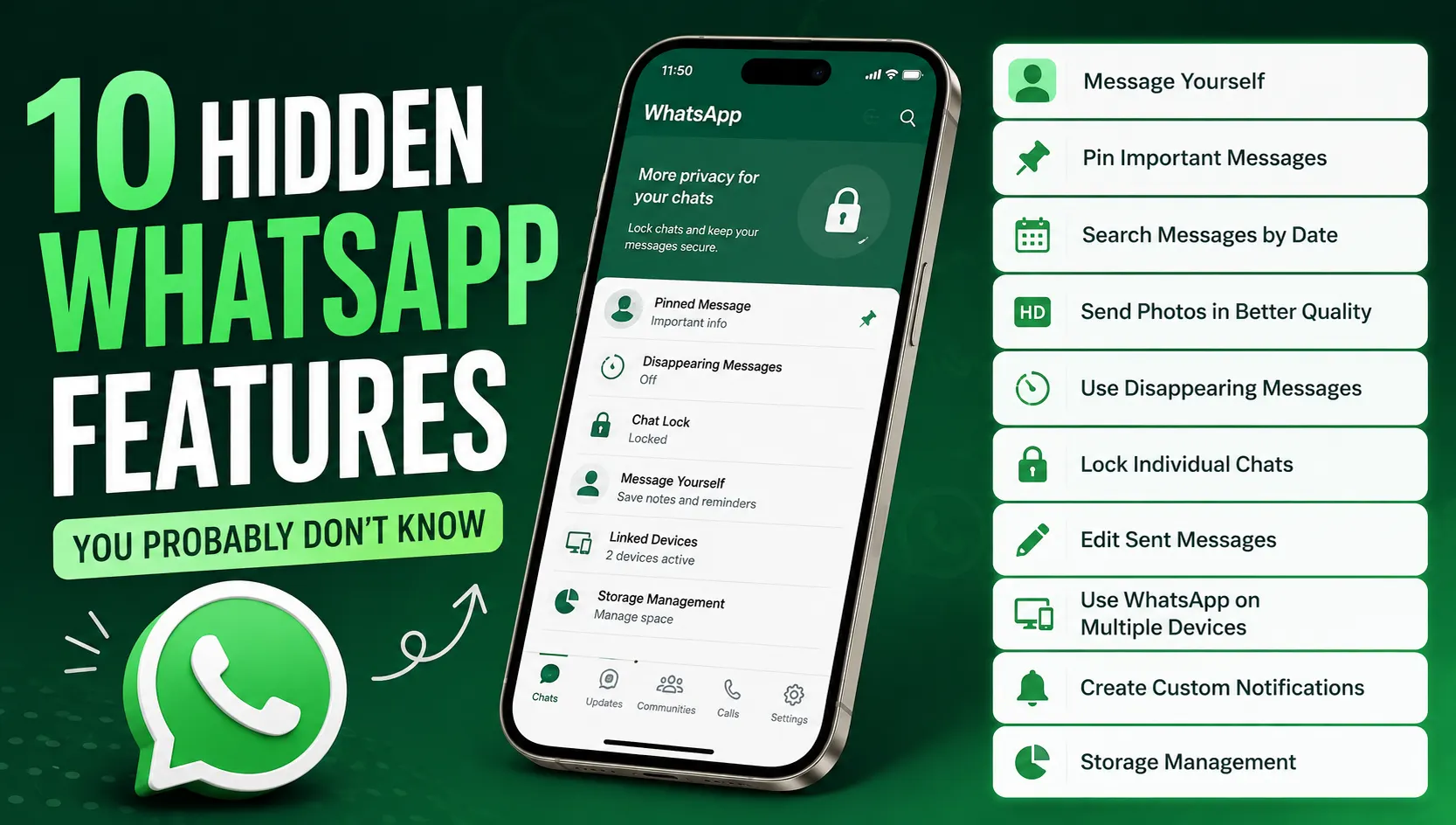
WhatsApp is one of the most popular messaging apps in the world, but many users only use it for sending messages, making calls, and sharing photos. The app actually includes several useful features that can make your chats more private, organized, and convenient.
Some of these features are easy to find, while others are hidden inside WhatsApp’s settings or chat options. Here are 10 WhatsApp features you may not be using yet.
1. Message Yourself on WhatsApp
WhatsApp allows you to create a chat with your own phone number. This can work like a personal notes section where you can save important information.
You can send yourself:
- Important links
- Shopping lists
- Photos and documents
- Reminders
- Notes and ideas
- Addresses or contact details
To use it, open WhatsApp and search for your own name or phone number. Tap your profile and start sending messages to yourself.
This is particularly useful when you want to quickly transfer something between your phone and other devices.
2. Pin Important Messages
If you frequently receive important information in WhatsApp chats, you don’t always have to search through hundreds of messages to find it.
WhatsApp allows users to pin specific messages inside a conversation. A pinned message stays easily accessible at the top of the chat.
You can use this feature for:
- Meeting details
- Addresses
- Important instructions
- Event information
- Payment details
- Travel plans
To pin a message, press and hold it, choose the menu option for pinning, and select how long you want it to remain pinned.
3. Search Messages by Date
Looking for an old WhatsApp message can be frustrating, especially when a conversation contains thousands of messages.
WhatsApp includes a date-based search option that can make this much easier. Instead of scrolling endlessly, you can select a particular date and find messages from that day.
This can be helpful when looking for an old conversation, document, address, or other information that you remember receiving around a specific date.
Open a chat, tap the search option, and look for the calendar icon if the feature is available on your device.
4. Send Photos in Better Quality
WhatsApp normally compresses photos when you send them, which can reduce their quality.
However, WhatsApp also provides an option to send photos in higher quality. When sending an image, look for the HD option and select the higher-quality setting before sending it.
This is useful when sharing:
- Travel photographs
- Product images
- Documents
- Screenshots
- Important pictures
Keep in mind that higher-quality images can use more storage and data than standard-quality photos.
5. Use Disappearing Messages
Want a conversation to automatically delete newer messages after some time? WhatsApp has a disappearing messages feature.
When enabled, new messages in a chat can automatically disappear after the selected period.
This can be useful for temporary conversations where you don’t want messages to remain in the chat forever.
You can usually find the option by opening a chat, tapping the contact or group name, and selecting Disappearing Messages.
Remember that disappearing messages should not be treated as a guarantee that a message cannot be saved. Someone can still take a screenshot, photograph the screen, or copy information before it disappears.
6. Lock Individual Chats
WhatsApp also provides a Chat Lock feature for conversations that you want to keep more private.
When a chat is locked, it is moved into a separate locked section and requires device authentication, such as a fingerprint, Face ID, or passcode, depending on your device.
This can be particularly useful if you sometimes share your phone with family members or other people.
To check whether the option is available, open a conversation, tap the contact’s name, and look for Chat Lock.
Also Read: How to Read WhatsApp Messages Without Showing Blue Ticks
7. Edit Sent Messages
Made a spelling mistake after sending a message? You don’t always have to delete the entire message.
WhatsApp allows users to edit recently sent messages within a limited period.
Simply press and hold the message and select Edit when the option appears. You can then correct the text and save the change.
An edited message is marked as edited, so the recipient can see that the message was changed, although they won’t see the previous version through the normal chat interface.
8. Use WhatsApp on Multiple Devices
You don’t necessarily need to use WhatsApp only on your primary phone.
WhatsApp’s linked-device feature allows you to connect your account to additional supported devices, such as a computer or another phone.
This can be convenient when you work from a laptop and don’t want to constantly pick up your phone to reply to messages.
Go to Settings > Linked Devices and follow the instructions to connect another device.
Always review your linked devices occasionally and remove any device you no longer recognize or use.
9. Create Custom Notifications
If you receive messages from many people throughout the day, it can be difficult to know who is contacting you without checking your phone.
For supported chats, WhatsApp can allow you to customize notification settings. You can use different notification sounds or settings for particular contacts or conversations.
This can help you quickly identify important messages without opening WhatsApp every time.
Open a chat, tap the contact’s name, and check the available notification options.
10. Use WhatsApp’s Built-in Storage Management
WhatsApp can consume a significant amount of storage because of photos, videos, documents, GIFs, and voice messages.
Instead of manually checking your phone’s gallery, WhatsApp provides storage management tools that help you identify large files and frequently forwarded content.
Go to Settings > Storage and Data > Manage Storage to see which chats and files are taking up the most space.
You can review large files and remove unnecessary media without deleting your entire conversation.
Final Thoughts
WhatsApp has evolved far beyond a simple messaging application. Features such as Chat Lock, disappearing messages, message editing, date-based search, better-quality media sharing, and storage management can make everyday WhatsApp use much easier.
The best part is that many of these tools are already available inside the app, so you don’t need a third-party application to use them.
However, WhatsApp updates its features regularly, and the exact location or availability of some options can vary depending on your phone, operating system, and app version.
If you haven’t explored WhatsApp’s settings recently, it may be worth spending a few minutes checking them. You might discover several features that can improve your privacy, organization, and overall messaging experience.