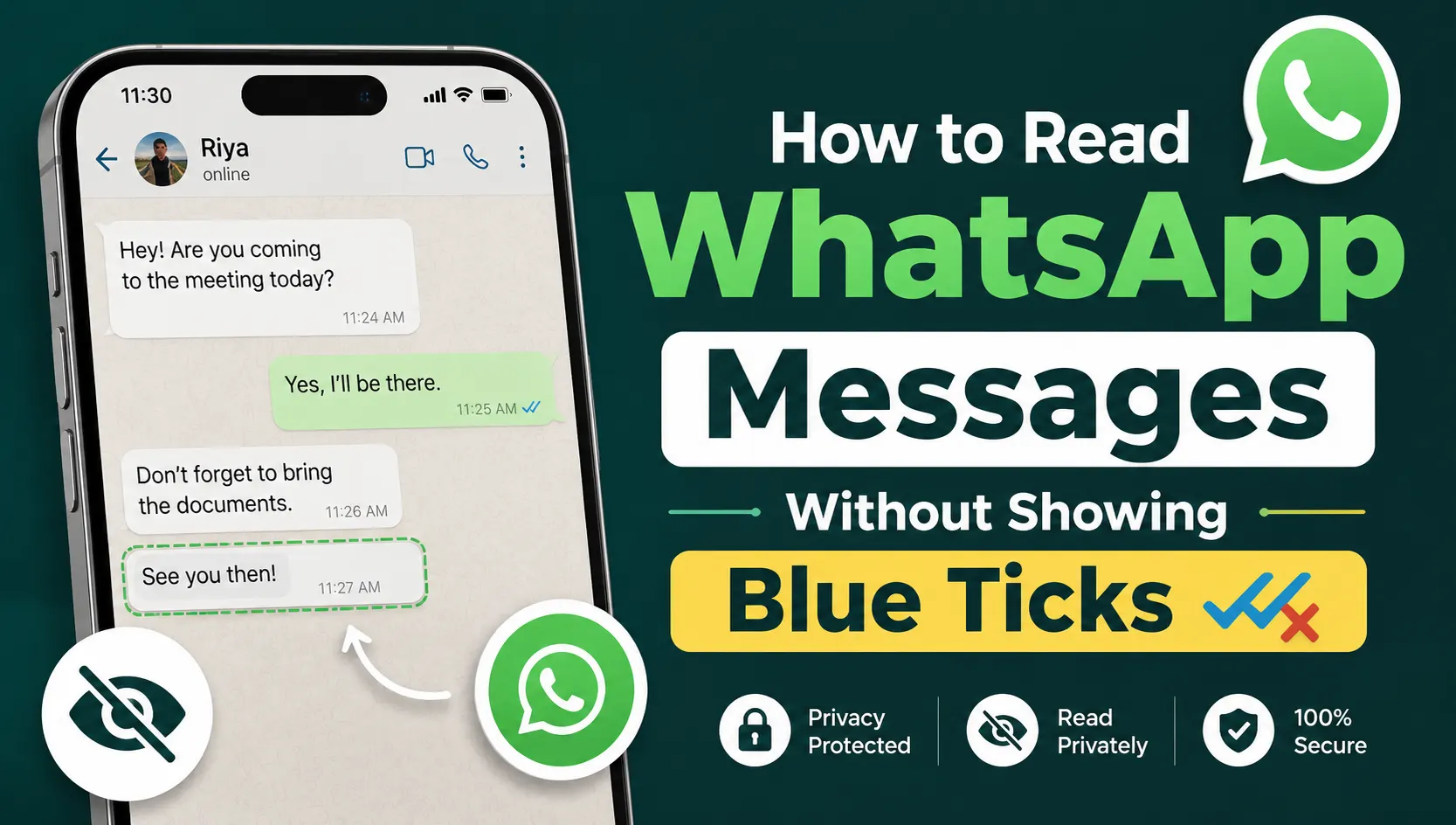
WhatsApp’s blue ticks are useful because they let the sender know that you have read their message. However, there are situations when you may want to read a message without immediately letting the other person know.
Fortunately, WhatsApp offers a few privacy-friendly ways to read messages without triggering the blue tick in certain situations. You can also change your read receipt settings directly from WhatsApp.
Here are the easiest methods you can try.
1. Turn Off Read Receipts
The simplest method is to disable Read Receipts from WhatsApp’s privacy settings.
On Android and iPhone
- Open WhatsApp.
- Go to Settings.
- Tap Privacy.
- Find Read Receipts.
- Turn the option off.
After disabling it, WhatsApp generally won’t show blue ticks for one-to-one chats when you read messages.
However, there is an important limitation: when you turn off read receipts, you also won’t be able to see read receipts from other people in regular individual chats.
Important Note
Read receipts settings don’t work the same way everywhere on WhatsApp. For example, group chats have different read-receipt behavior, so turning off the setting doesn’t necessarily hide that you’ve read a group message.
2. Read Messages From the Notification Panel
Another easy option is to read a message directly from your phone’s notification panel.
When someone sends you a WhatsApp message, the notification may display part or all of the message.
You can read the preview without opening WhatsApp.
How to Do It
- Wait for the WhatsApp notification to appear.
- Swipe down from the top of your phone.
- Expand the WhatsApp notification if necessary.
- Read the available message preview.
- Avoid tapping the notification.
Since you haven’t opened the conversation, this can help you read the message without opening the chat.
The main limitation is that long messages may be truncated, and media or multiple messages may not be fully visible.
3. Use the WhatsApp Widget on Android
Some Android phones allow you to place a WhatsApp widget on the home screen.
The widget can display messages without requiring you to open the WhatsApp application.
Try This
- Long-press an empty area on your Android home screen.
- Select Widgets.
- Look for a WhatsApp widget, if your device and WhatsApp version provide one.
- Add it to your home screen.
- Use the widget to preview available messages.
The exact availability and behavior of widgets can vary depending on your Android version and device.
4. Use Airplane Mode Carefully
Another commonly discussed method involves temporarily disconnecting your phone from the internet before opening WhatsApp.
The basic idea is to prevent WhatsApp from immediately communicating with its servers while you view the message.
A typical process is:
- Wait until the WhatsApp message arrives.
- Turn on Airplane Mode.
- Open WhatsApp and read the message.
- Close WhatsApp completely.
- Turn Airplane Mode off.
However, this isn’t the most reliable method. Once your phone reconnects to the internet, WhatsApp may synchronize the read status depending on the app’s current behavior.
For that reason, changing the Read Receipts setting or using notification previews is generally more straightforward.
5. Reply From Notifications
On some smartphones, WhatsApp notifications allow you to respond directly without opening the full conversation.
This can be useful when you want to interact with a message without spending time inside the chat.
However, notification features depend on your phone’s operating system, notification settings, and WhatsApp version.
If you use this method, make sure you understand how your device handles WhatsApp notifications before relying on it for privacy.
Does Turning Off Blue Ticks Hide Your Online Status?
No.
Read Receipts and Online Status are separate privacy controls.
Turning off read receipts doesn’t automatically hide when you’re online.
If you also want to control your online visibility, open:
WhatsApp → Settings → Privacy → Last Seen and Online
From there, you can choose who can see your last seen information and control your online visibility according to the options available on your WhatsApp version.
Can You Read WhatsApp Messages Without the Sender Knowing?
Yes, in many normal one-to-one situations, you can prevent the usual blue-tick read receipt by disabling Read Receipts before reading the message.
You can also preview messages through notifications without opening the chat.
However, there isn’t a single method that guarantees complete invisibility in every WhatsApp situation. Group chats, voice messages, notifications, and other WhatsApp features can behave differently.
What Happens When You Turn Read Receipts Back On?
If you disable read receipts and later turn them back on, don’t assume that every previous message will remain permanently hidden.
WhatsApp’s behavior can depend on the type of chat and the action you’ve taken.
If privacy is important, it’s better to use WhatsApp’s built-in privacy settings rather than relying on unofficial apps or modified versions.
Avoid Third-Party Apps
You may find websites or apps claiming that they can secretly read WhatsApp messages or provide special privacy features.
Be careful with these services.
Third-party apps that request access to your WhatsApp account, notifications, contacts, or messages can create unnecessary privacy and security risks. Some may also ask for sensitive permissions that aren’t required for normal WhatsApp use.
For the safest experience, use WhatsApp’s official privacy features and your phone’s built-in notification controls.
Frequently Asked Questions
Can I read WhatsApp messages without blue ticks?
Yes. In individual chats, you can disable Read Receipts from WhatsApp’s privacy settings. Reading message previews from notifications can also allow you to see messages without opening the conversation.
Will the sender know if I turn off read receipts?
WhatsApp doesn’t send a notification telling someone that you’ve disabled read receipts. However, they may notice that their messages are not showing the usual blue ticks.
Can I hide blue ticks only for one person?
WhatsApp’s standard Read Receipts setting is generally applied globally rather than being a separate setting for each individual contact.
Does this work in WhatsApp groups?
Group chats have different read-receipt behavior. Turning off Read Receipts doesn’t provide the same level of hiding in groups as it does in individual chats.
Can I hide blue ticks for voice messages?
Voice messages can have different read/playback indicators, so the standard Read Receipts setting shouldn’t be treated as a universal way to hide every interaction.
Final Thoughts
If you want to read WhatsApp messages without immediately showing blue ticks, the easiest approach is to use WhatsApp’s built-in Read Receipts setting. For quick messages, notification previews can also be convenient because you don’t need to open the conversation.
Just remember that WhatsApp privacy controls have limitations, particularly with group chats and certain types of interactions.
Most importantly, avoid unofficial WhatsApp applications and third-party tools promising secret reading features. The safest approach is to use WhatsApp’s own privacy settings and your phone’s built-in notification features.
Pingback: 10 Hidden WhatsApp Features You Probably Don’t Know – Dating Update